
Give one good product photo a little movement
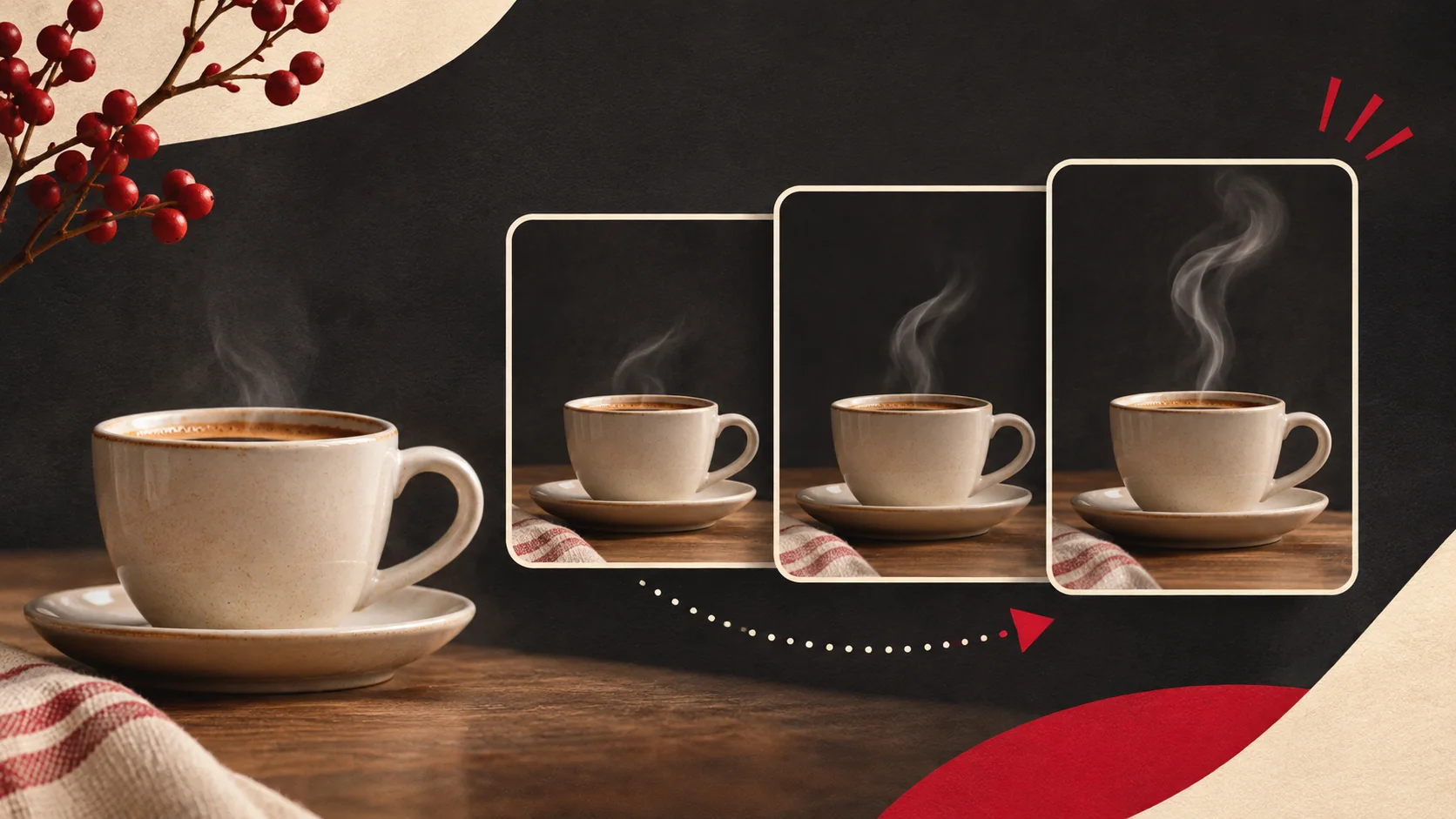
A curl of steam above a coffee cup gives someone scrolling a reason to pause. The product stays easy to recognise, while a small movement draws the eye. A short loop can add that detail to a social feed or, exported as a video, a Google Business Profile update. It does not guarantee more enquiries or sales.
You can animate a product photo with AI without planning a video shoot. Start with one clear phone photo, choose one small movement, and check the result against the real product before posting.
OpenAI’s Images 2.6 launch post describes turning product shots into GIF loops. The workflow below uses a coffee cup as an example, but you can adapt it to a candle, jar, or handmade item.
Check the controls available in your account. If it returns still frames rather than an animation, the assembly steps below provide a separate route.
1. Start with one good photo
Choose a product you already sell and photograph the actual item. Keep the original nearby for comparison later.
Set up the shot
- Place the product beside a window in soft daylight. Turn off nearby lamps if they give the product an orange tint, and avoid harsh direct sun.
- Use a plain background, such as a sheet of card or an uncluttered counter. Wipe the phone lens, tap the product to focus, and steady your hands against the table.
- Centre the product and shoot a little wider than you need. Leave room above it for steam or around it for a light effect, so a later crop does not cut anything off.
Zoom into the photo before moving on. If the label is unreadable or the edges are blurry, retake it. An attractive animation still needs a trustworthy starting image.
2. Write a prompt with one simple movement
Upload the photo to ChatGPT and describe what should move, what must stay still, and how the loop should restart.
Animate the scene around the product rather than reshaping the product itself. Steam above a cup is easier to check than a cup turning through angles your photo never showed. A slow rotation can expose unseen surfaces and give you more details to correct.
Copy and adapt this prompt
This example assumes an unbranded cup with no visible writing. Replace the product and motion details to match your photo.
Use my uploaded photo as the reference. Create a short looping GIF of this exact coffee cup, with only a thin curl of steam moving above the drink. Plan 12 sequential frames in a 4-column by 3-row sprite sheet, ordered left to right, top to bottom. A sprite sheet is one image containing all the frames in a grid. Keep the camera fixed, with no zoom or pan. Show the same cup in the same position and at the same size in every frame. Preserve its shape, handle, colour, material, and shadow. Keep the counter and background still. Move only the steam, gently and gradually. Make the final frame flow naturally back into the first for a seamless loop. Use identical square framing for every frame. Include no text or logos in the frames. If you return the sprite sheet first, use those frames to make the looping GIF.
The frame count is a starting choice, not a required setting. The useful pattern is sequential frames, a fixed camera, an unchanged subject, and a clean return to the beginning.
For a labelled product, request no added text or logos and preserve the existing label exactly. Check every letter yourself. If it changes, reject that version.
3. Generate, then check every frame
Watch the animation several times, then inspect each frame at full size. If you receive a sprite sheet, read across each row from the top left.
Compare it with the original
Check for warped labels, changing colours, extra objects appearing, and a product that bends or changes size. Look closely at handles, lids, seams, and shadows. Then watch the restart: does the steam jump when the last frame returns to the first?
Give precise feedback when something changes:
Keep the original cup unchanged in all 12 frames. Its handle becomes wider in frames 6 to 8. Restore the handle shape from the uploaded photo, keep the background fixed, and reduce the steam movement by half. Make no other changes.
Ask for one correction at a time so you can see whether it worked. Return to the source photo if repeated edits move further from the real item.
4. Export and prepare the post
Save the approved GIF and original photo together with the prompt. Use a clear filename, such as coffee-cup-steam-approved, so you can find the right version later.
If you have a grid instead of an animation
Use an image editor to crop the equal-sized cells into separate files, named frame-01 through frame-12. Import them in that order into a GIF or video editor. As a starting point, give each frame a quarter of a second, making a three-second loop, then adjust until the movement feels gentle. Preview the join before exporting.
Prepare each version
- Make a square crop for an Instagram feed post and a square version to preview in a Google Business Profile post. Keep the product comfortably inside the edges.
- Make a vertical version for Reels and Stories. Add background space rather than stretching the product.
- Keep the loop short. Export a video version in your editor for video posting, rather than assuming every platform accepts a GIF. Check the upload preview and playback before sharing.
- Add the caption, price, offer dates, and ordering details as real text in the post. Never bake them into the image.
Google supports photos and videos in Business Profile updates; its post guidance explains the available fields. Keep a still image ready if the animation does not display as intended.
Watch the tutorial alongside your first attempt
Follow the tutorial with your own photo ready, pausing to inspect the product before continuing.
Mistakes that make AI product images look fake
Too much motion can make a solid item look rubbery. Reduce the movement before adding effects.
Generated text or logos can misrepresent your packaging. Preserve existing details and put new messages in the caption.
A busy moving background competes with the item you want people to notice. Keep the scene still and give only one element movement.
Colour drift can make one product look like several variants. Compare every frame with your source photo, especially if customers choose by colour.
A blurry source photo leaves important details unclear. Retake it rather than spending several editing rounds repairing it.
Turn a good result into a repeatable task
Start with one product and one post. Once you have a result you trust, save the prompt and review checklist for the next item. For a broader next step, read How to choose your first AI automation.
Take the free AI opportunity assessment for a preliminary starting point, or discuss your workflow with GGTAMOL.
Questions business owners ask
What movement is easiest to review?
A small scene detail, such as steam above a stationary cup, is easier to compare with a single source photograph than an object rotating to reveal unseen sides.
Can I trust generated product labels?
Inspect every letter and design detail. If the label changes, correct or reject the result rather than presenting inaccurate packaging.
What if I receive a sprite sheet instead of a GIF?
Export the cells as sequential frames and assemble them with an animation editor, keeping frame sizes consistent. Check the transition from the last frame to the first.